Your GuiWeb mailbox works in any web browser at webmail.guiweb.com, and in the mail app on your phone or computer. This page shows you both: how to use webmail, step by step with pictures, and the settings for your mail app. Nothing here changes your mail; it is the same mailbox everywhere.
On this page: Signing in · The screen · Reading · Writing · Attachments · Signature · Out of office · Password · Mail app settings · On a phone · FAQ · Help
1. Signing in
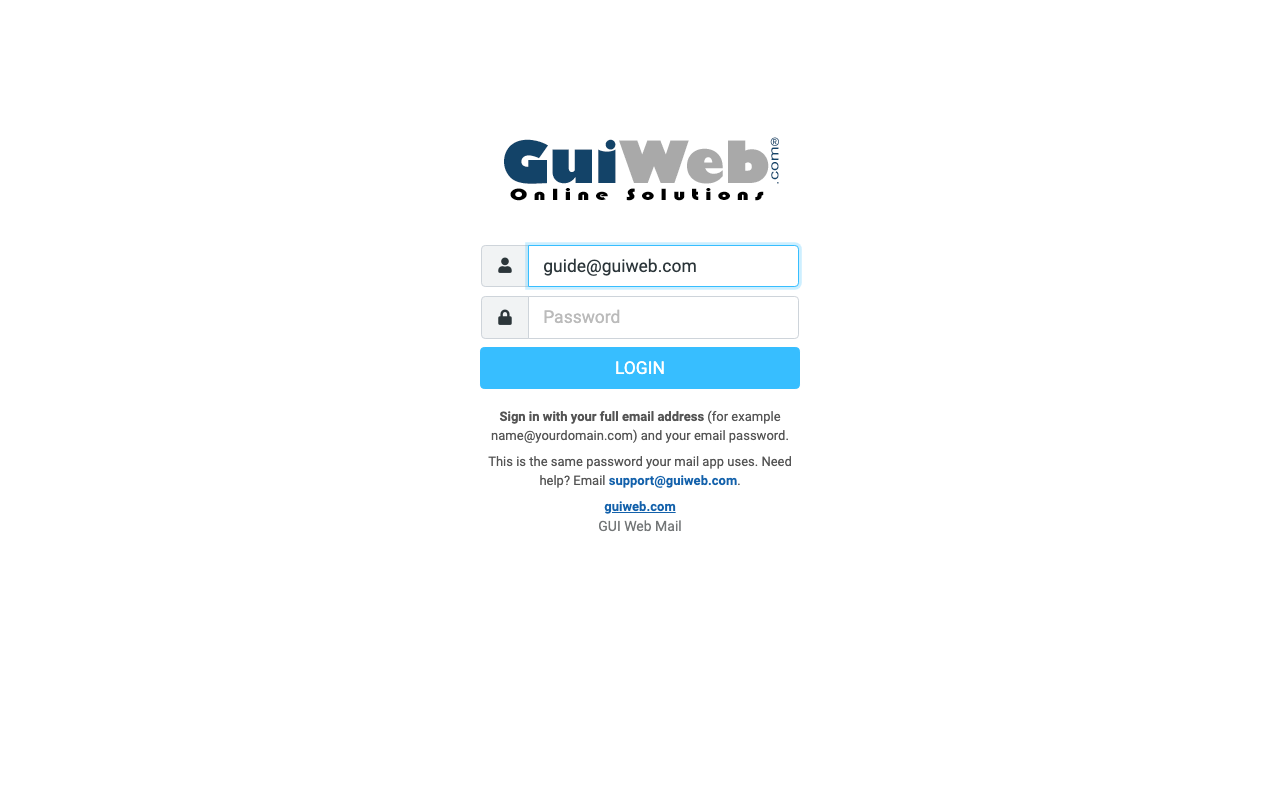
- Go to webmail.guiweb.com and bookmark it.
- Type your full email address (for example name@yourdomain.com) and your email password.
- Click Login. When you are finished, click Logout at the bottom left, especially on a shared computer.
2. The screen, left to right
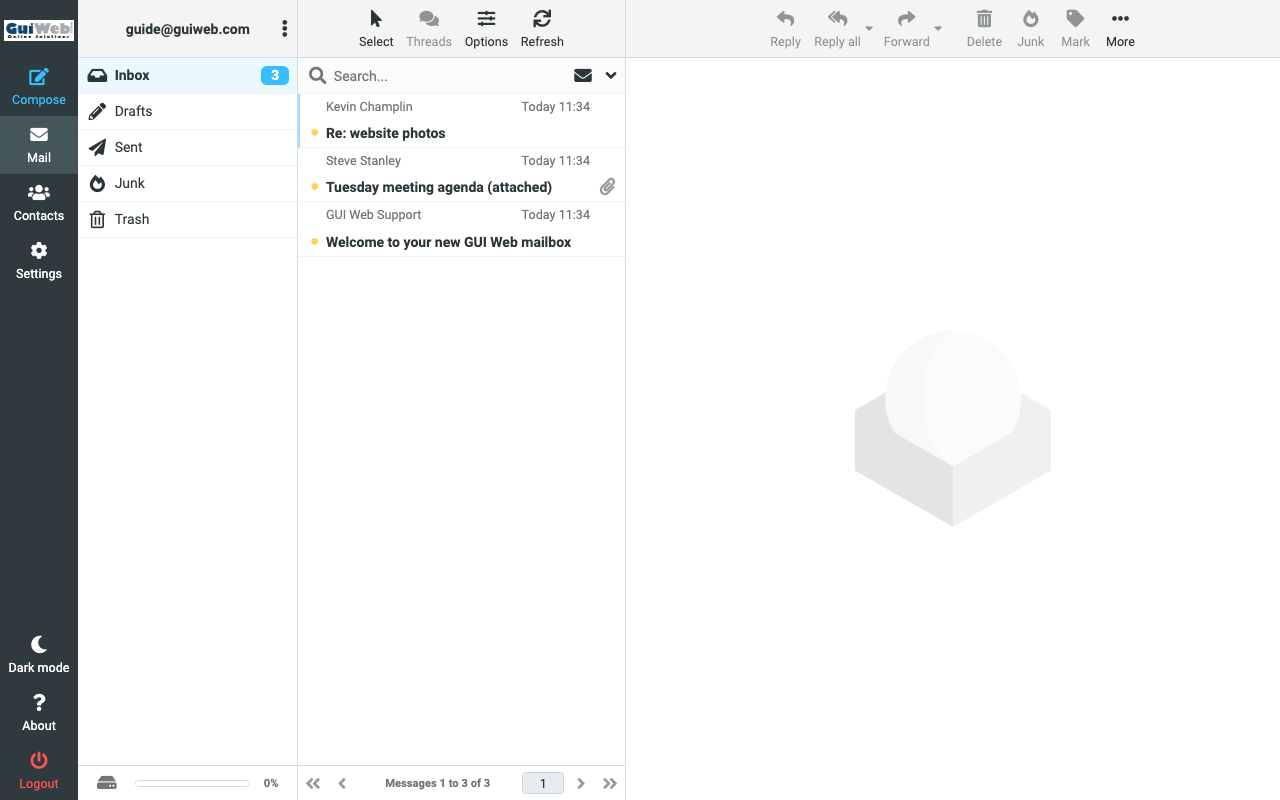
Left: Compose (new email), Mail, Contacts, Settings. Folders: Inbox, Drafts, Sent, Junk, Trash. The blue number next to Inbox is your unread count. Middle: the message list, newest first; bold means unread; a paperclip means an attachment. Right: the message you click opens here, with Reply, Reply all, Forward, Delete, Junk, Mark and More above it.
3. Reading mail
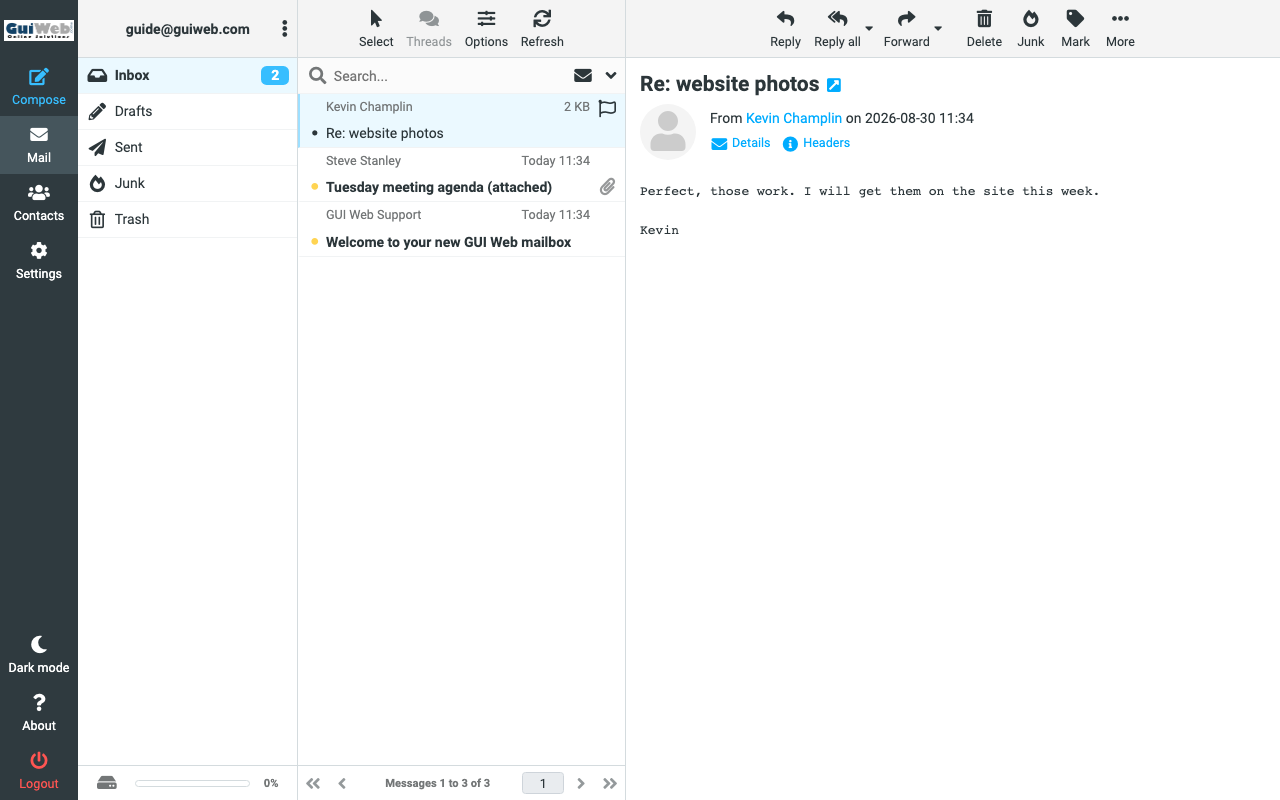
- Click a message once to read it on the right. New mail appears on its own; click Refresh to check right now.
- Mark lets you set a message back to unread, or flag it (a red flag appears in the list).
- Delete moves it to Trash. Drag it back out if you change your mind.
4. Writing a new email
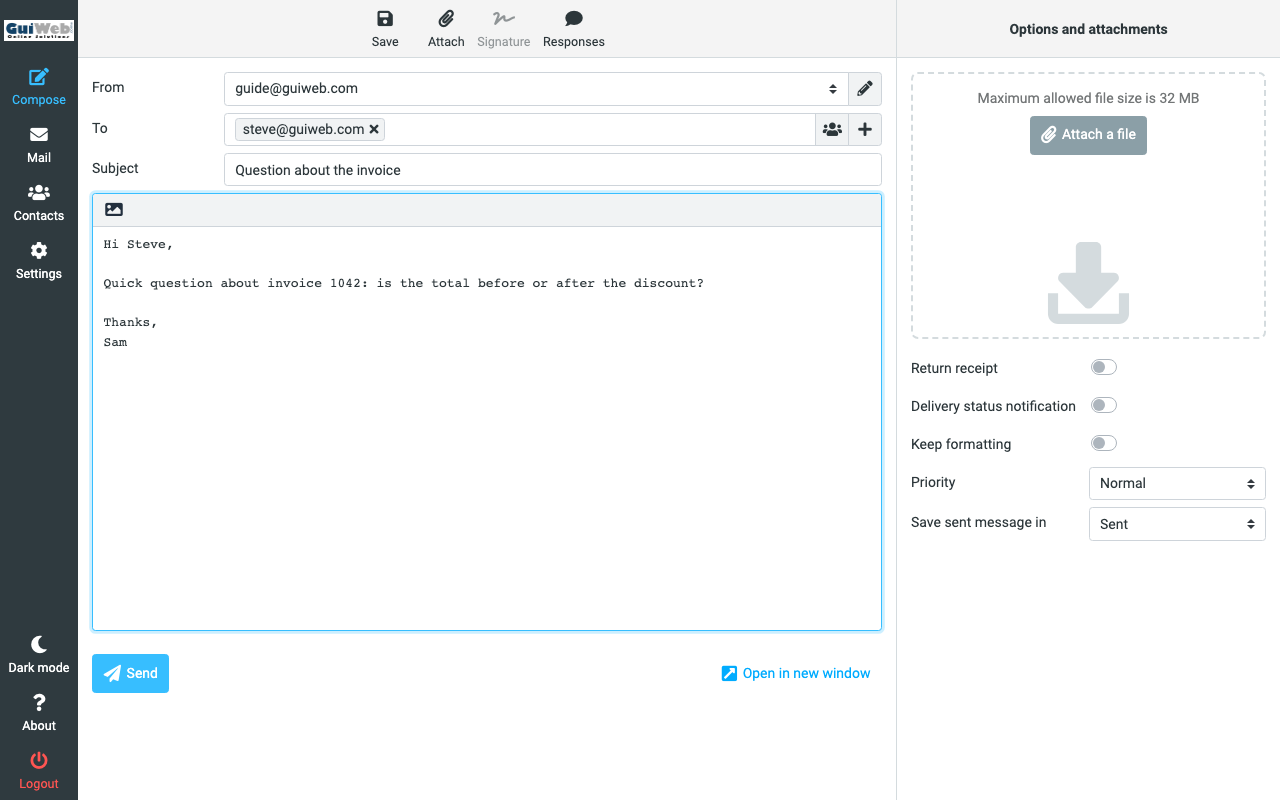
- Click Compose (top left).
- In To, start typing a name or address; pick the suggestion or press Enter. Add more people the same way. The + button adds Cc and Bcc.
- Type a Subject and your message, then click Send. A copy goes to Sent.
- Not ready? Click Save; it waits in Drafts.
Reply answers the sender only. Reply all answers everyone on the message; check which one you mean. Forward sends it on to someone new.
5. Attachments
Receiving: attachments are listed under the message; click to open or download. Sending: click Attach (the paperclip) or drag the file into the "Attach a file" box on the right. Up to 32 MB per message.
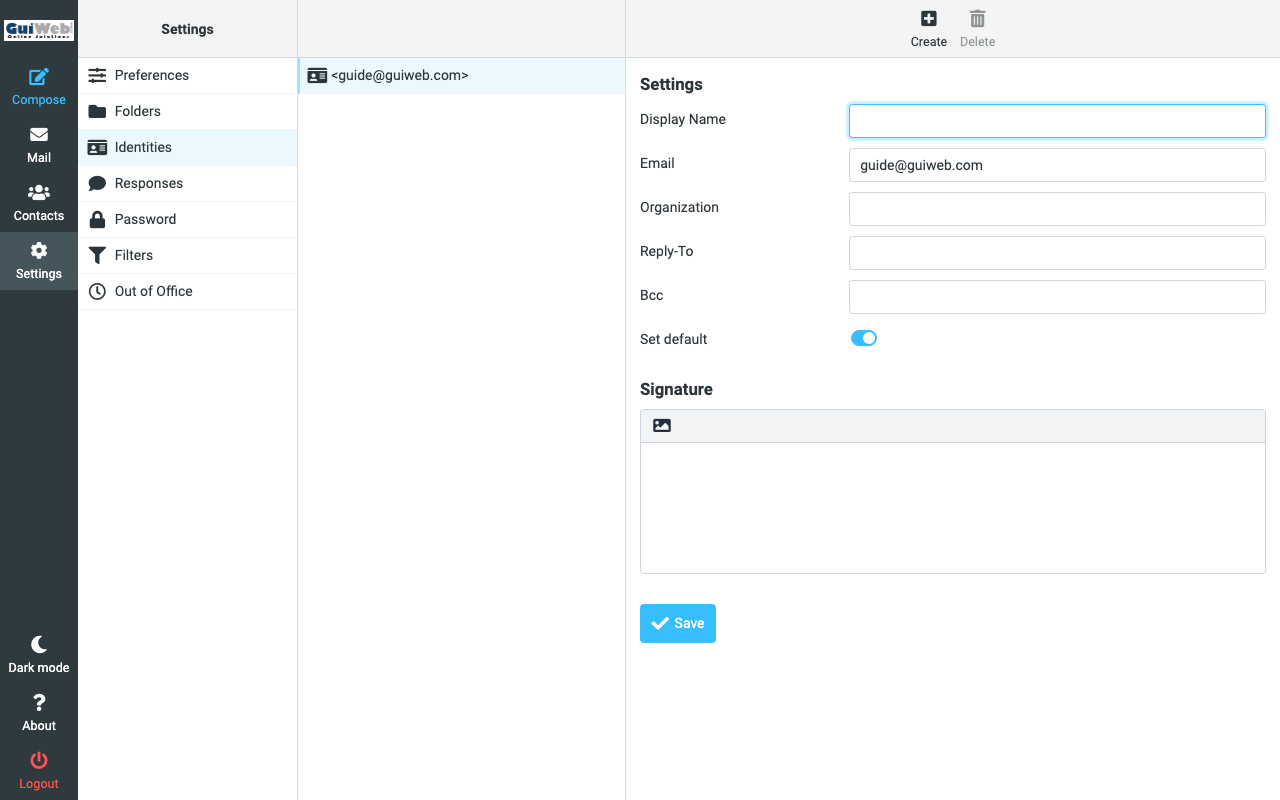
6. Adding a signature
- Click Settings, then Identities, then click your address.
- Fill in Display Name (how your name appears to others) and type your signature in the Signature box.
- Click Save. It is added to every new message.
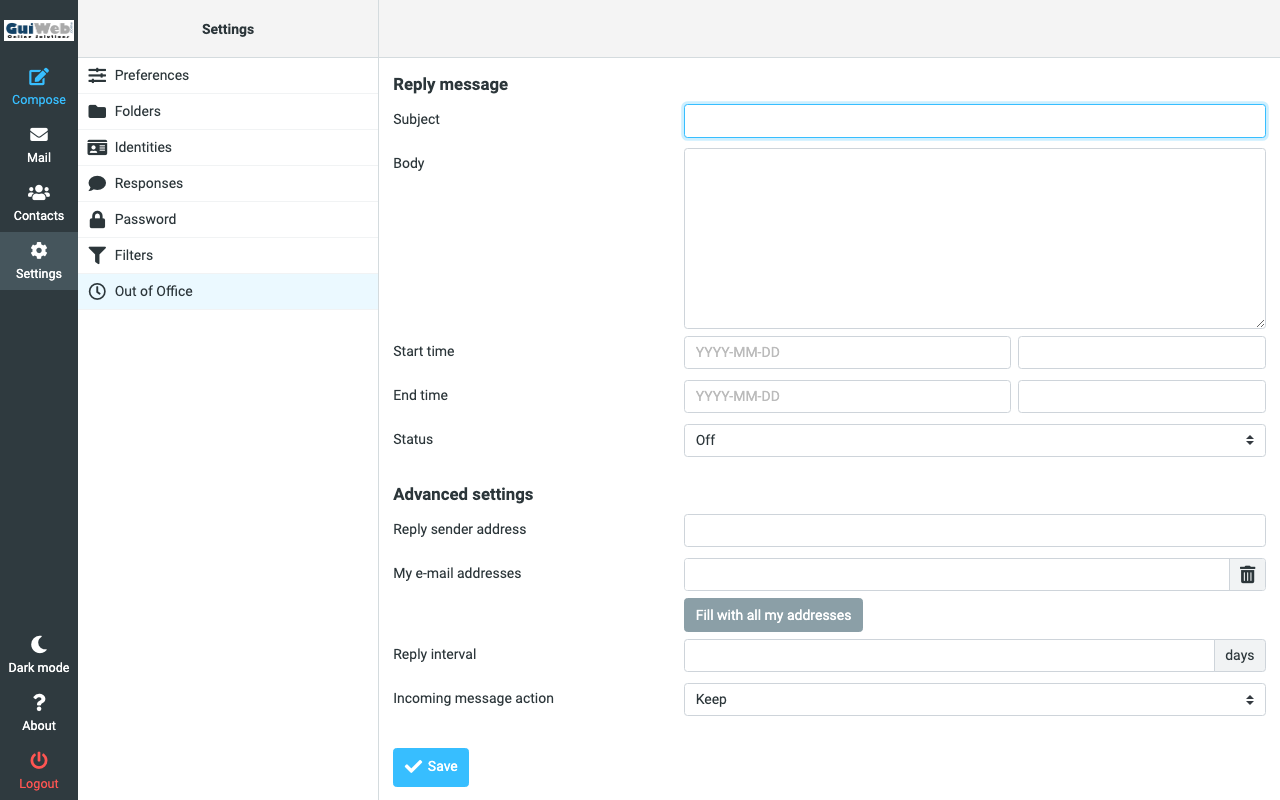
7. Out of office (automatic reply)
- Click Settings, then Out of Office.
- Type a Subject and the reply in Body.
- Set Start time and End time, set Status to On, and click Save. It switches itself off on the end date.
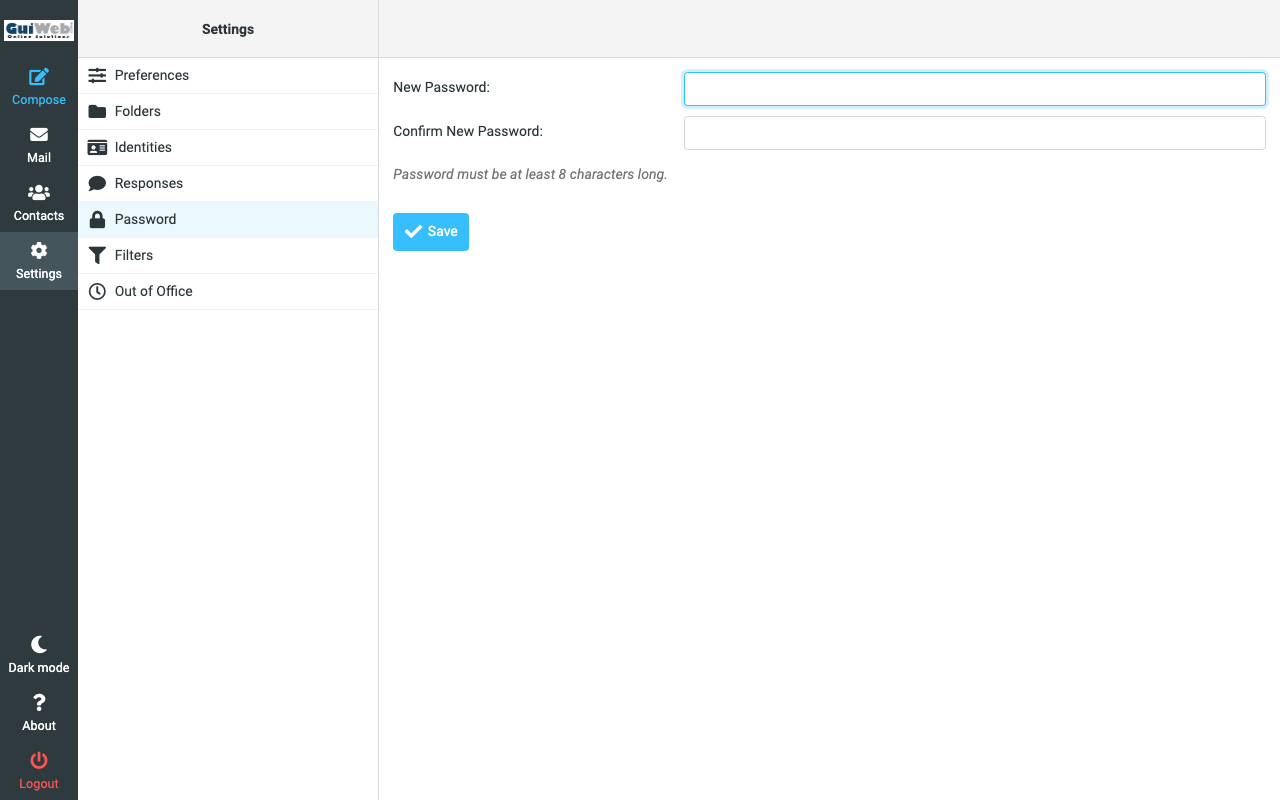
8. Changing your password
- Click Settings, then Password.
- Enter the current password, then the new one twice, and click Save.
- Update the password in your phone and computer mail apps too, or they will keep asking.
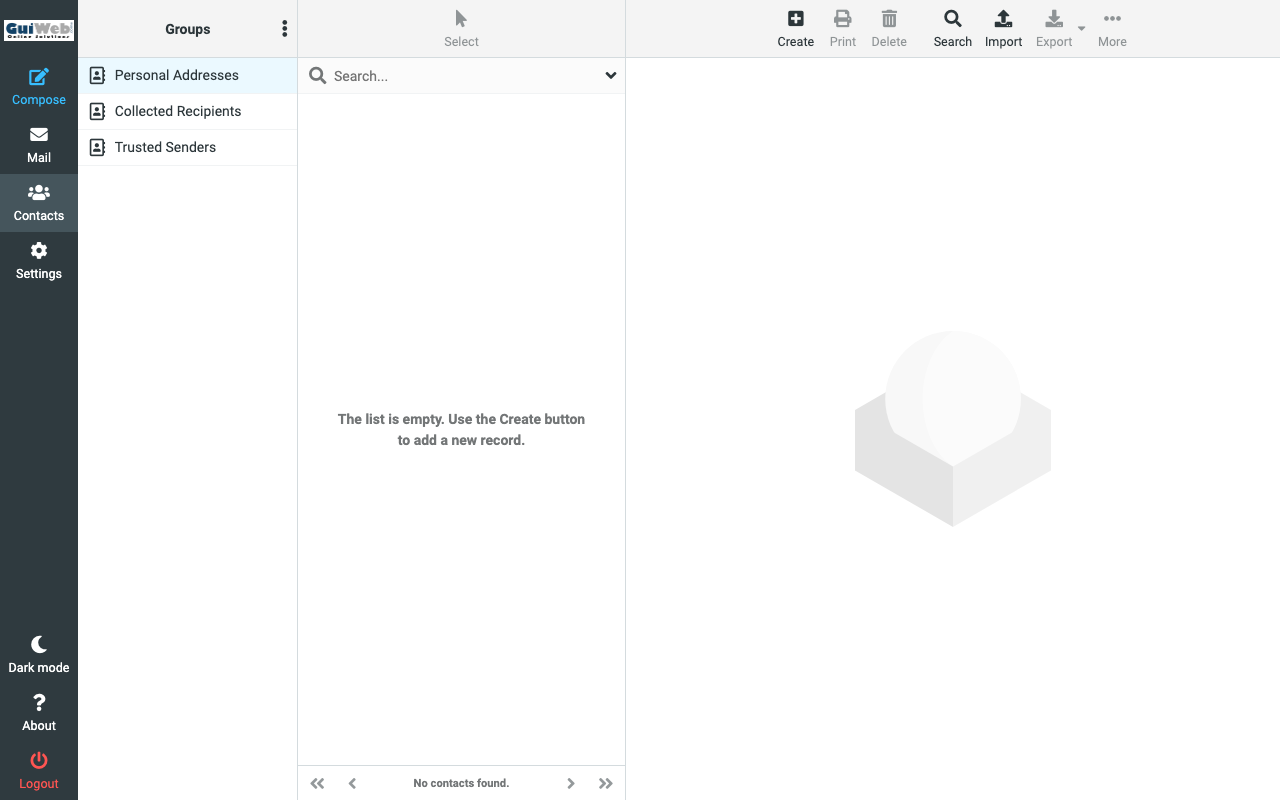
9. Contacts
Click Contacts on the left. The + button adds a person; when you write to someone, their address is suggested as you type. Contacts saved here are available from any browser.
Mail app settings (phone, tablet, computer)
Use these in Apple Mail, Outlook, Gmail app, Thunderbird or any other mail app. Same username and password for incoming and outgoing.
| Username | your full email address |
|---|---|
| Password | your email password |
| Incoming (IMAP) server | mail.guiweb.com, port 993, SSL/TLS |
| Outgoing (SMTP) server | mail.guiweb.com, port 587, STARTTLS, requires sign-in (same username and password) |
| Authentication | Password (normal) |
| Webmail | https://webmail.guiweb.com |
Choose IMAP, not POP. IMAP keeps every device in sync with the server; POP downloads copies and is why the same message can show up twice.
On a phone
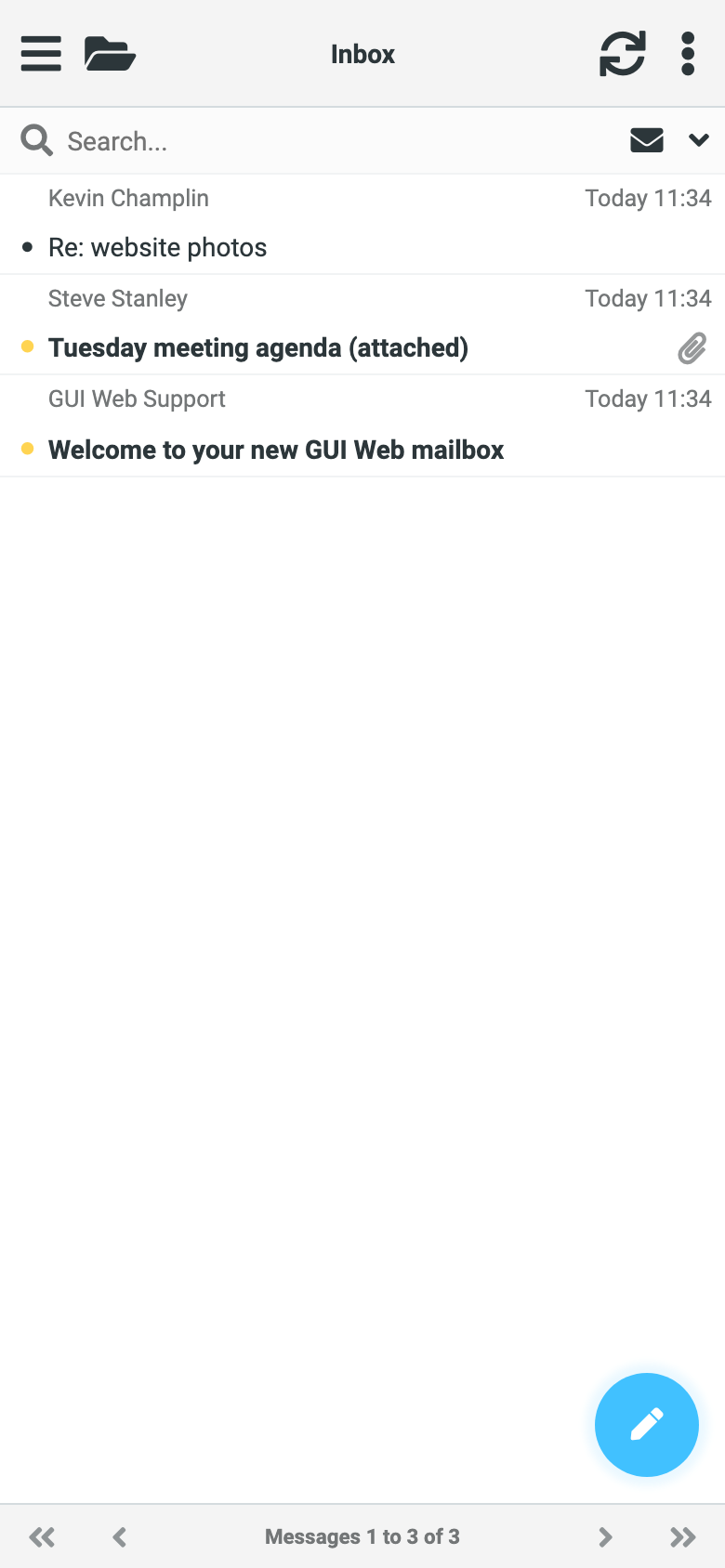
Webmail works in the phone's browser too: the three columns become one at a time. Tap a message to open it, use the back arrow to return to the list. For everyday use, the phone's own Mail app with the settings above is more comfortable.
Frequently asked questions
Which address do I use to sign in?
Your full email address, for example name@yourdomain.com, and your email password. The username is never just the part before the @.
I forgot my password.
Email support@guiweb.com from another address (or text us) and we will reset it. Passwords are not shown anywhere on the site.
Webmail and my phone show the same mail, right?
Yes. Webmail, your phone and your computer all look at the same mailbox on the server. Read a message in one place and it is read everywhere; delete it in one place and it is gone everywhere.
Can I keep using Apple Mail, Outlook or my phone's mail app?
Yes. Use the settings in the table above. Webmail is just another way in, handy on a computer that is not yours.
Someone says my email bounced or was never received.
First check Sent: if the message is there, it left the server. Then ask the recipient to look in their junk folder. If it is still missing, forward the bounce message (if you got one) to support@guiweb.com and we will trace it.
How big can attachments be?
Up to 32 MB per message. Anything larger is better shared as a link (Dropbox, Google Drive, iCloud).
How do I set up an out-of-office reply?
Settings, then Out of Office. Fill in Subject and Body, set the Start and End dates, set Status to On and click Save. It switches itself off on the end date.
How do I add a signature?
Settings, then Identities, click your address, type the signature in the Signature box and click Save. It is added to every new message.
Where is Junk mail?
In the Junk folder on the left. If a real message landed there, open it and click Not junk so the filter learns. To report spam, select it and click Junk.
Is my mail backed up?
Yes. The mail server is backed up nightly. Mail you delete goes to Trash first and can be dragged back for 30 days.
Can I change my password myself?
Yes. Settings, then Password: enter the current password, then the new one twice, and click Save. Update it in your phone and computer mail apps afterwards, or they will keep asking.
Help
Stuck, or something not working?
Email us and a real person replies. Tell us your email address and what you see on screen.